
Canva Video Background Remover: How to Remove a Video Background in Canva
Canva has a built-in video background remover. Below is how to use it, what to check before you rely on it, and how to get a transparent video if Canva’s export doesn’t give you one. Want to skip the editor? Remove the background right here with the tool above and import the result into Canva.
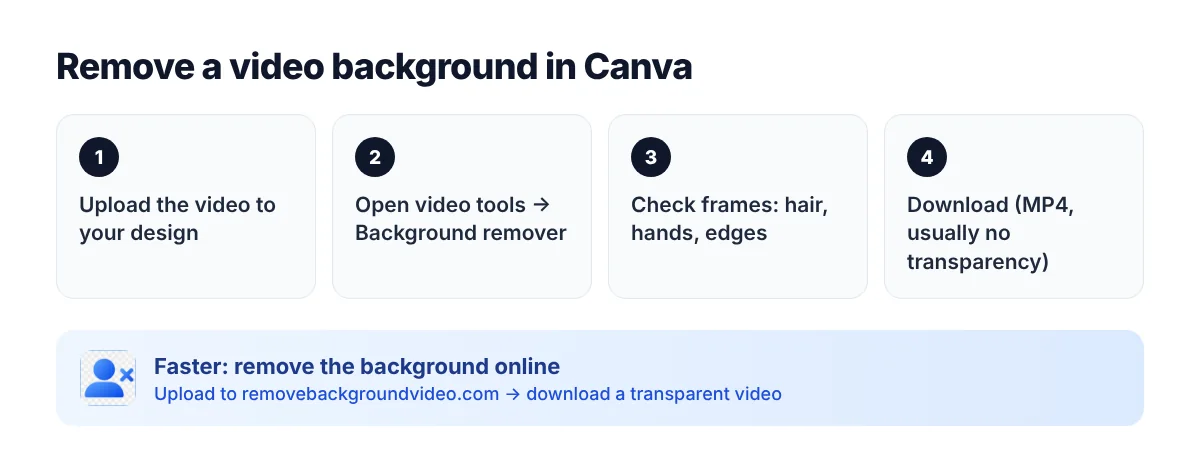
How to remove the background from a video in Canva
1. Open or create a design and upload your video (or drag it onto the page).
2. Select the video and open the video editing tools.
3. Choose Background remover and wait while Canva processes the clip.
4. Check several frames — hair, hands, fast movement and edges are where mistakes show up.
5. Add a new background if you need one and download the video.
Do you need Canva Pro?
Yes — the video background remover is a Canva Pro feature. On a free Canva account the button is locked. Plan names and limits change, so check your account before you plan a project around it.
Will the downloaded video be transparent?
Not necessarily. Canva typically exports finished videos as MP4, and standard MP4 cannot store transparency — so the removed background is usually replaced by whatever is on the page behind the video. If you need a cutout to use in another editor, you need a video with a transparent background.
Faster alternative: remove the background first, then edit in Canva
1. Upload the video to the video background remover at the top of this page.
2. Download the result with a transparent background.
3. Upload it to Canva and place it over any background, text or animation.
This works without Canva Pro for the removal step, and you keep a clean transparent file you can reuse in other apps.
How to remove a colour overlay from a video in Canva
If your video looks tinted, it usually has a colour or a transparent shape placed on top of it, or a filter applied. Select the element above the video and delete it or set its transparency to zero, then check the video’s Edit panel and remove any filter or adjustment. This is different from removing the video’s background.
FAQ
Can Canva remove the background from a video for free?
The video background remover requires Canva Pro. You can remove the background here instead — the first minute of video is free — and import the result into Canva.
Why does my Canva video still have a background after download?
Canva exports MP4, which does not keep transparency. Remove the background with a tool that exports a transparent video, then use that file.
Can I remove a green screen in Canva?
You can try Canva’s background remover on green screen footage, or use our green screen remover for a transparent result.