
How to Remove Background in DaVinci Resolve
DaVinci Resolve gives you two ways to remove a background from video: Magic Mask, an AI tool that isolates people and objects, and the 3D Keyer for green and blue screens. Below are both methods, how to export a transparent result, and what to do if you are on the free version. Short on time? Remove the background with the tool at the top of this page and import the transparent video into Resolve.
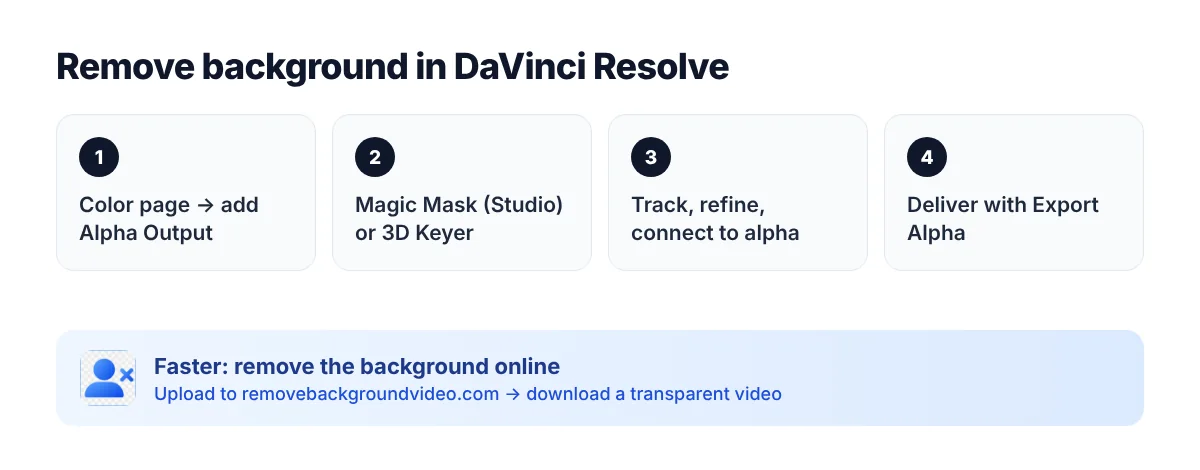
Method 1: Magic Mask (AI, no green screen)
Magic Mask is part of Resolve’s Neural Engine and is available in DaVinci Resolve Studio, the paid version. The free version does not include it.
1. Put your clip on the timeline and open the Color page.
2. Right-click in the node graph and add an alpha output to the node tree.
3. Select the node and open the Magic Mask palette.
4. Choose the Person (or object) mode and draw a stroke over the subject in the viewer.
5. Click Track forward and backward to propagate the mask through the clip.
6. Connect the node’s alpha output to the tree’s alpha output, so everything outside the mask becomes transparent.
7. Refine with the mask’s Softness, Shrink/Grow and Clean settings.
The Magic Mask interface changed between Resolve versions (newer versions select the subject with a click instead of strokes), so menu names may differ slightly in yours.
Method 2: 3D Keyer (green or blue screen)
The 3D Keyer is available in the free version.
1. On the Color page, add an alpha output to the node tree.
2. Select the node and open the Qualifier palette, then choose 3D.
3. Draw a line across the green screen in the viewer to sample it.
4. Invert the key so the subject stays and the green disappears, and connect the node to the alpha output.
5. Use Despill and the matte finesse controls to clean edges and remove green spill.
Uneven lighting, shadows and wrinkles make keying harder. Our green screen remover handles those cases automatically.
How to export a video with a transparent background from Resolve
On the Deliver page, choose a format that supports an alpha channel — for example QuickTime with an alpha-capable codec — and enable Export Alpha. Regular MP4 (H.264) does not keep transparency. Learn more about transparent videos.
Faster alternative
If you are on the free version, don’t want to track masks frame by frame, or need a cutout for another app:
1. Upload your video to the video background remover.
2. Download the result with a transparent background.
3. Import it into DaVinci Resolve and place it over any background.
FAQ
Can DaVinci Resolve remove a background for free?
The free version can key out green and blue screens with the 3D Keyer. Magic Mask, which removes ordinary backgrounds with AI, requires DaVinci Resolve Studio.
Why is my background black after export?
The export format or settings don’t include an alpha channel. Choose a format that supports alpha and enable Export Alpha on the Deliver page.
How do I remove a black background in DaVinci Resolve?
Use a luma key in the Qualifier or the Composite Mode (Screen/Add) on the Edit page for effects shot on black. For people and products on black, removing the background with AI keeps the subject solid — try the video background remover.