
How to Remove Background in After Effects
After Effects offers three ways to remove a video background: Roto Brush for ordinary footage, Keylight for green and blue screens, and masks for simple shots. Below is how each works and how to export with transparency. If you just need a clean cutout, use the tool at the top of this page and import the result into After Effects.
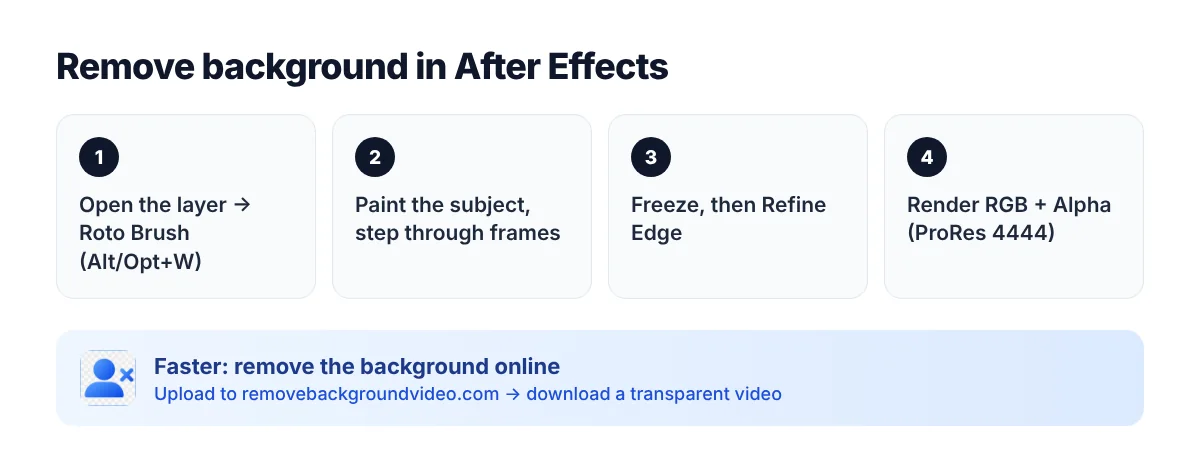
Method 1: Roto Brush (no green screen)
1. Double-click the footage layer to open the Layer panel.
2. Select the Roto Brush tool (Alt+W on Windows, Option+W on Mac).
3. Paint over the subject to include it; hold Alt/Option and paint to exclude areas.
4. Step through the clip so After Effects propagates the selection, correcting frames where it slips.
5. Click Freeze to lock the result, then return to the Composition panel.
6. Use Refine Edge and the Roto Brush’s feather and choke settings for hair and soft edges.
Method 2: Keylight (green or blue screen)
1. Apply Effect → Keying → Keylight (1.2).
2. Use the eyedropper next to Screen Colour to sample the backdrop.
3. Switch the view to Screen Matte and adjust Clip Black, Clip White and Screen Gain until the subject is solid white and the background solid black.
4. Switch back to Final Result.
Footage with uneven light, shadows or spill is easier with the AI green screen remover.
Method 3: Masks (static shots)
Draw a mask around the subject with the Pen tool, feather it and keyframe the mask path if the subject moves. This works for locked-off shots with little movement.
How to export with a transparent background
In the Render Queue or Media Encoder, choose a format with an alpha channel — for example QuickTime with Apple ProRes 4444 — and set Channels to RGB + Alpha. More about transparent videos.
Faster alternative
1. Upload the clip to the video background remover.
2. Download the transparent video.
3. Import it into After Effects as a ready cutout.
FAQ
What is the Roto Brush in After Effects?
Roto Brush is After Effects’ tool for separating a subject from the background by painting over it and letting the software track it across frames.
Can After Effects remove a background without a green screen?
Yes, with Roto Brush or masks. It takes manual work on complex shots; an online AI remover does it automatically.
Why is the background black after rendering?
The output module doesn’t include alpha. Set Channels to RGB + Alpha and use a codec that supports it.