
How to Remove Background in Premiere Pro
Premiere Pro removes video backgrounds in two ways: the AI-powered Object Mask tool for ordinary backgrounds and the Ultra Key effect for green and blue screens. Here is how to use both and how to export a transparent result. Prefer one click? Use the tool at the top of this page and import the transparent video into Premiere.
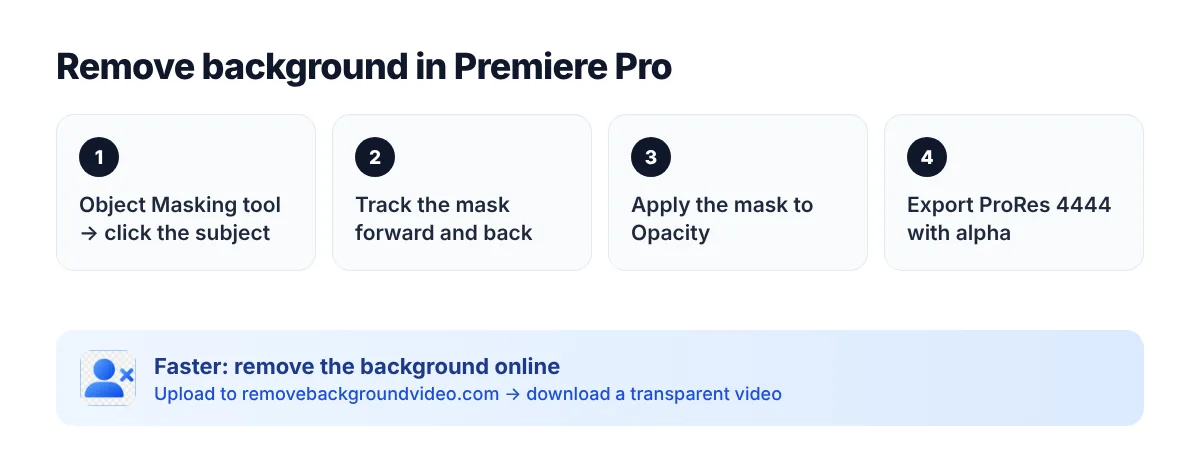
Method 1: Object Mask (AI, no green screen)
Available in recent versions of Premiere Pro.
1. Put the new background clip on the timeline and the clip with your subject on the track above it.
2. Select the Object Masking tool in the toolbar, hover over the subject and click it to create a mask.
3. If parts of the subject are missed, draw around those areas to add them.
4. In Effect Controls, find the Object Mask and track it forward and backward through the clip.
5. Fix gaps frame by frame where needed.
6. Apply the mask to Opacity so only the subject stays visible.
7. Refine edges with Expansion and Feather.
Method 2: Ultra Key (green or blue screen)
1. Apply Effects → Keying → Ultra Key to the green screen clip.
2. Pick the Key Color with the eyedropper on the green area.
3. Set Output to Alpha Channel to check the matte, then adjust Matte Generation and Matte Cleanup.
4. Use Spill Suppression to remove green tints from edges, and set Output back to Composite.
For uneven or shadowed green screens, the AI green screen remover is usually cleaner.
How to export a transparent video from Premiere Pro
Export with a codec that supports an alpha channel — for example QuickTime with Apple ProRes 4444, with alpha enabled. H.264 MP4 does not keep transparency. More about transparent videos.
Faster alternative
1. Upload your clip to the video background remover.
2. Download it with a transparent background.
3. Import it into Premiere Pro and place it over any background, title or graphic.
FAQ
Can Premiere Pro remove a background without a green screen?
Yes — recent versions include the Object Mask tool. Older versions need manual masks with tracking, which is slow for moving subjects.
Why is my exported video background black?
The export codec doesn’t include an alpha channel. Use a format such as ProRes 4444 with alpha.
How do I remove a white background in Premiere Pro?
For footage shot on white, use the Object Mask or a luma-based key. For a cleaner cutout without tweaking, use the video background remover.